


Smart thermostat resources for multifamily tenants
Get to know your smart thermostat
Smart thermostats like the Mysa make it easier to manage your apartment’s electric heat, create a comfortable schedule, save energy, and participate in PSE Flex Smart to earn rewards. Use this page to learn how to control your thermostat, set a heating schedule and get help.
What is Flex Smart?
Flex Smart uses smart thermostats to help reduce electricity use during periods of heightened demand. During a Flex event, PSE may temporarily adjust an enrolled thermostat’s temperature by a few degrees, and your thermostat will return to its regular settings after the event. You can always override an adjustment by changing the temperature.
To make it easy for tenants to take part, the Mysa thermostats at participating multifamily properties are already enrolled through PSE’s Multifamily Retrofit program, so tenants do not need to enroll their thermostats individually. If you are unsure if you are living at a participating property, reach out to your landlord to check.
For tenants: Connect, control
and participate
Your Mysa is already set up to control the electric heat in your apartment. You can adjust the temperature directly on the thermostat, or ask your property manager for access to manage it through the Mysa app.
1. Connect to the Mysa app
Ask your landlord or property manager to send you an email invitation. The invitation will include a customized link to download the Mysa app and connect to the thermostat or thermostats in your unit.
Don’t see your invitation?
- Check your junk or spam folder.
- Confirm that your property manager used the correct email address.
- Ask your property manager to resend the invitation.
2. Control your temperature
On the thermostat
Press the up or down button to change the temperature. The display will briefly show your new setpoint, then return to showing the current room temperature.
In the Mysa app
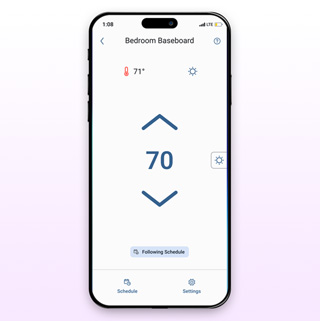
After you receive access, tap the tile for your unit or room. You can adjust the temperature, create a schedule and manage supported thermostat settings.
3. Participate in Flex Smart
Your thermostat is already enrolled in PSE Flex through the multifamily program. Up to 15 times in winter, the thermostat may automatically adjust by a few degrees for a limited time to help support the grid.
If you are uncomfortable, simply change the temperature on the thermostat or in the app to opt out of the event. If you have a schedule set up, the thermostat will return to the schedule’s temperature settings following the event.
By staying enrolled and participating, you receive a $25 bill credit after the winter season in April. You must be the accountholder at the time of payout.
Flex Smart support
Flex Smart is administered on behalf of PSE by Uplight.
For the fastest assistance, you can contact Uplight's customer support directly at support@pseflex.com or by calling 1-888-793-9347.
Mysa thermostat scheduling and
temperature management
-
Create a comfortable heating schedule
A schedule automatically changes your set temperature at the times you choose. For example, you can use a comfortable temperature while you are home and a lower temperature while you are sleeping, away for the day or on vacation. Mysa schedules repeat weekly and continue at the most recent setpoint until the next scheduled change.
Winter temperature recommendations
- Home: 68 to 72°F
- Away for the day: 60 to 65°F
- Vacation: 57 to 60°F
These are starting points, not requirements. Choose settings that work for your comfort, household needs and building.
To create a schedule:
- Open the Mysa app.
- Select the thermostat you want to schedule.
- Tap Schedule.
- Tap Add Event, or select a time slot.
- Choose the time and temperature (or Off).
- Select the days when the event should repeat.
- Tap Save.
-
Change or temporarily override a schedule
You are always able to adjust your temperature.
If you change the temperature directly on the thermostat, that temperature remains in place until the next schedule or next Flex event. In the app, you may also be able to hold a temperature until a selected date and time or resume your normal schedule manually.
To return to automatic scheduling in the app:
- Open your thermostat controls.
- Select Follow Schedule.
- Confirm that the schedule is active.
-
Simple ways to manage heating
- Keep furniture, curtains and other items clear of electric baseboard heaters so warm air can circulate.
- Close curtains at night during cold weather to help keep heat inside.
- Open curtains on sunny days to take advantage of warmth from the sun.
- Use a lower temperature when you will be away for several hours.
- Create a weekly schedule so you do not need to remember every adjustment.
- Consider a window insulation kit.
-
What happens when I move out?
Before moving, open the Mysa app and select Leave Home, if that option is available to you. Your property manager can also remove your shared-user access. The thermostat will continue running according to the property’s schedule.
Mysa app and thermostat how-to videos
Use these short videos to set up a weekly schedule, copy settings between days and manage multiple Mysa thermostats.
A schedule can automatically adjust your heat throughout the day. Mysa recommends scheduling as a primary way to manage energy use, and its baseboard thermostat supports recurring weekly schedule events.
-
Create a schedule with guided setup
Video: MYSA: Create a Schedule
Use the guided schedule option when you want the app to help build a schedule around your normal routine.
- Open the Mysa app and select your thermostat.
- Open the schedule controls.
- Choose the guided schedule option.
- Enter when you are typically home, away and asleep.
- Review the proposed temperature changes.
- Save the schedule.
-
Create a schedule manually
Video: MYSA: Create a Schedule Manually
Manual scheduling gives you control over each time and temperature change.
- Open your thermostat in the Mysa app.
- Tap Schedule.
- Select Add Event.
- Choose a time and temperature.
- Select the days when the event should repeat.
- Save the event.
- Add more events for times such as waking up, leaving home, returning home and going to sleep.
-
Simple ways to manage heating
Video: MYSA: Schedule Copy Days
If several days follow the same routine, create the schedule once and copy it.
- Open the schedule screen.
- Select Copy Day.
- Choose the day you want to copy.
- Select the other days that should use the same schedule.
- Continue and save your changes.
-
Copy a schedule to another thermostat
Video: MYSA: Copy Schedule From One Device to Another
Use this option if your unit has more than one thermostat and you want them to follow similar schedules.
- Create and save a schedule on the first thermostat.
- Select the thermostat where you want to use the same schedule.
- Open its schedule controls.
- Choose the option to copy or apply an existing schedule.
- Select the source thermostat or saved schedule.
- Review and apply the schedule.
Get help
Questions about the Mysa thermostat or app
Visit help.getmysa.com or email support@getmysa.com. The Mysa help center includes instructions for scheduling, manual thermostat controls and troubleshooting.
Questions about Flex Smart for Multifamily
Flex Smart is administered on behalf of PSE by Uplight. For the fastest assistance, you can contact Uplight's customer support directly at support@pseflex.com or by calling 1-888-793-9347.
-
What happens if the Wi-Fi goes out?
The thermostat can continue functioning as a thermostat without Wi-Fi, and the temperature can still be adjusted on the device. App controls and other connected features may be unavailable until the connection returns. The Wi-Fi for your thermostat connectivity is provided by your landlord via the Smart Water Link or other available building Wi-Fi.
-
Can I change the temperature during a Flex event?
Yes. Adjusting the thermostat manually overrides the event adjustment. This temperature setting will stay in place until the next programmed schedule, Flex event, or when you manually adjust the thermostat.
-
Why can’t I see my thermostat in the app?
Your property manager must invite you as a shared user and assign access to the thermostat in your unit. Check your email and spam folder for the invitation.
-
Does changing the temperature cancel my regular schedule?
A manual change on the thermostat holds until the next programmed schedule. App options may also let you choose a timed hold or return immediately to the schedule.
-
I noticed there is a Smart Water Link on my hot water tank. Is this part of the same program?
Yes. PSE has partnered with qualified electricians to install a Smart Water Link on resident water heaters. The product is called an Armada Power Optimizer.
The Armada Power Optimizer reduces energy use automatically on your electric water heater during times of peak demand without changing your hot water availability. In addition, the Power Optimizer provides a stable Wi-Fi signal to the thermostat. If you have any questions or concerns about your Smart Water Link, please contact your landlord or property manager directly.
Download the tenant guide
Keep a printable copy of the key instructions, recommended temperatures and support contacts.
Download the Mysa tenant guide